Ansible Setup
In this section we will run some initial ansible commands to get setup and explore our environment.
First, select the Terminal button in coder to launch a terminal.
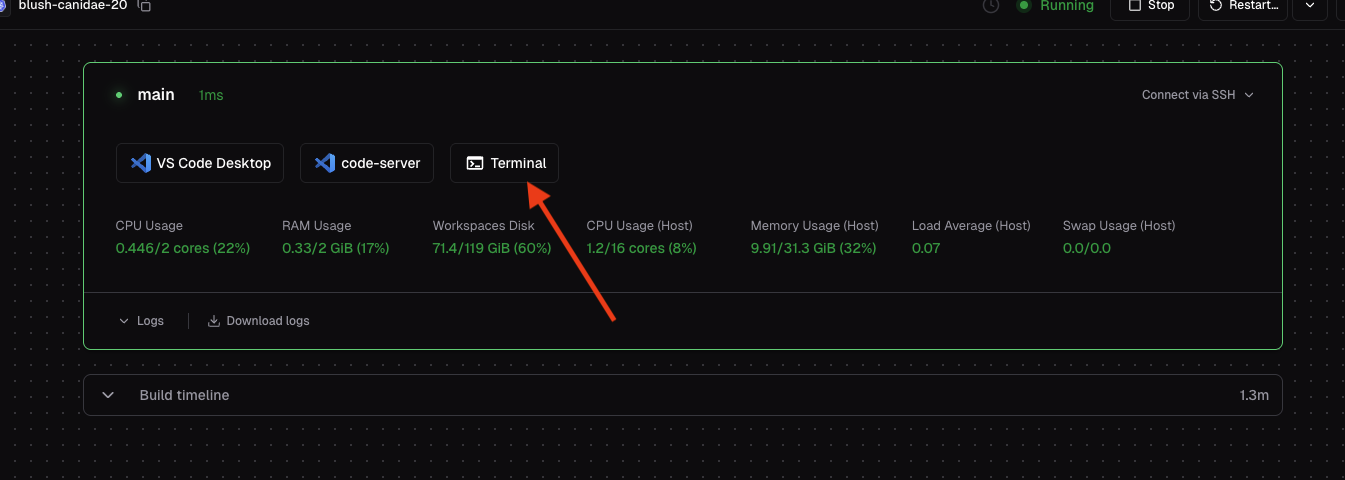
This will open a shell terminal within your coder container. Drag the corner of the terminal window to make it bigger.
You have two choices for viewing/editing files in this lab. You can either edit them from the CLI (vi/vim) or you can use the built-in visual studio code client by selecting the code-server button on the Coder page. All execution of ansible commands will be done through the terminal CLI.
In the terminal, change to the ansible-workshop directory. We are going to execute the config.sh script to make a minor change.
That script just changes some SSH key related permissions that we’ll use later.
NOTE: If you stop/start or recreate your workspace you will have to re-execute the script to reset the permissions.
Now let’s look at our environment. There are some preset variables that we are going to take advantage of.
and we should see the following:
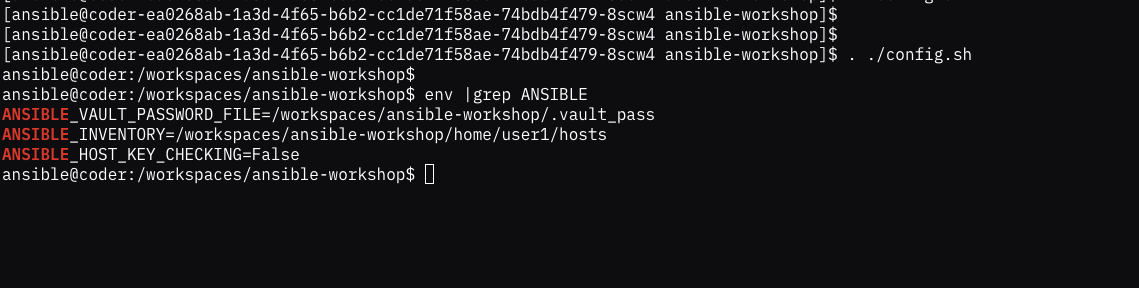
The most important thing is that the ANSIBLE_INVENTORY is pointing to the correct file. Each user has a unique inventory file that has a list of VMs that are unique to that user. Later we will run commands against that inventory file to implement changes to the VMs.